
Synexa Holiday Notice
Check the theme app embed
Troubleshoot theme activation, sample messages and the announcement configuration path.
Updated
The app embed connects a theme to your saved announcements. Check it when the dashboard cannot confirm activation, the editor shows only a sample, or the storefront stays empty.
Check activation directly
- Open the app dashboard and choose Enable announcement bar or Manage announcement bar.
- Confirm the Shopify theme editor is showing the theme you mean to test.
- Open App embeds, find Synexa Holiday Notice, and turn it on.
- Save the theme, return to the app, and choose Recheck activation.
The dashboard checks the published theme. It can report an unknown result if activation cannot be verified, so check the actual toggle before concluding that setup failed. A draft theme needs its own embed setting and preview.
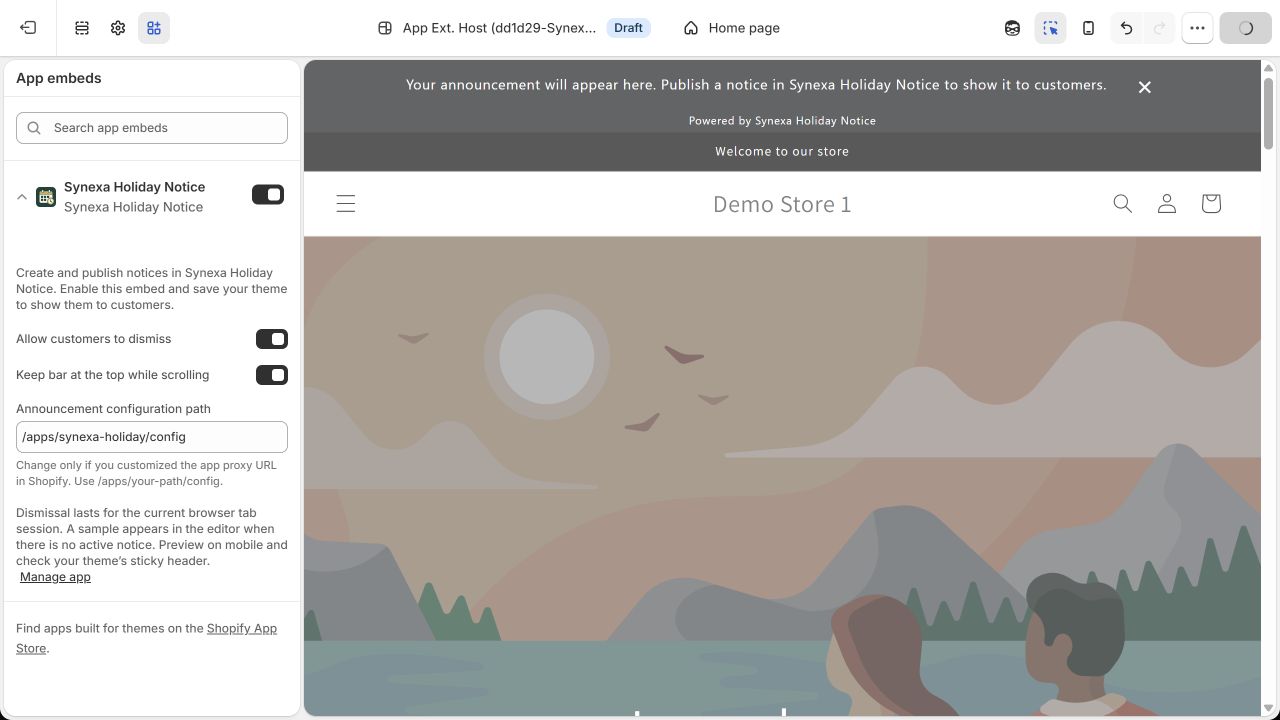
October 2026 development-theme example. A sample message can appear in the editor when there is no eligible saved notice.
Check the configuration path
The default Announcement configuration path is /apps/synexa-holiday/config. Leave it unchanged for a normal installation. If your installed app proxy URL was deliberately customized in Shopify, the embed's setting must match that installed path followed by /config.
Do not paste a development tunnel address, backend URL, password or API token into this field. Do not uninstall and reinstall merely to try to change a proxy path. If you are unsure which path the installation uses, contact support before editing it.
Distinguish a sample from a real notice
The theme editor can display sample text to help you configure the bar. It does not publish a draft or guarantee a notice is currently eligible. Confirm Published, Enable this notice, a valid schedule and priority selection in the app, then open the storefront outside the editor.
If the embed is missing entirely, verify the app is installed in this store and that the theme supports the extension. Send support the theme name and what is missing.