
Synexa Holiday Notice
How to activate the theme app embed
Enable Synexa Holiday Notice in your theme editor and verify the correct theme.
Updated
A saved notice needs the Synexa Holiday Notice app embed to appear on your storefront. Enable it on the specific theme you intend to use.
Enable the announcement bar
- Open Synexa Holiday Notice → Dashboard in Shopify admin.
- In the setup section, choose Enable announcement bar. If already active, the button reads Manage announcement bar.
- In the Shopify theme editor, open App embeds and switch on Synexa Holiday Notice.
- Review Allow customers to dismiss and Keep bar at the top while scrolling as needed.
- Leave Announcement configuration path unchanged unless your store's app proxy path was intentionally customized.
- Save the theme changes. Return to the app and choose Recheck activation.
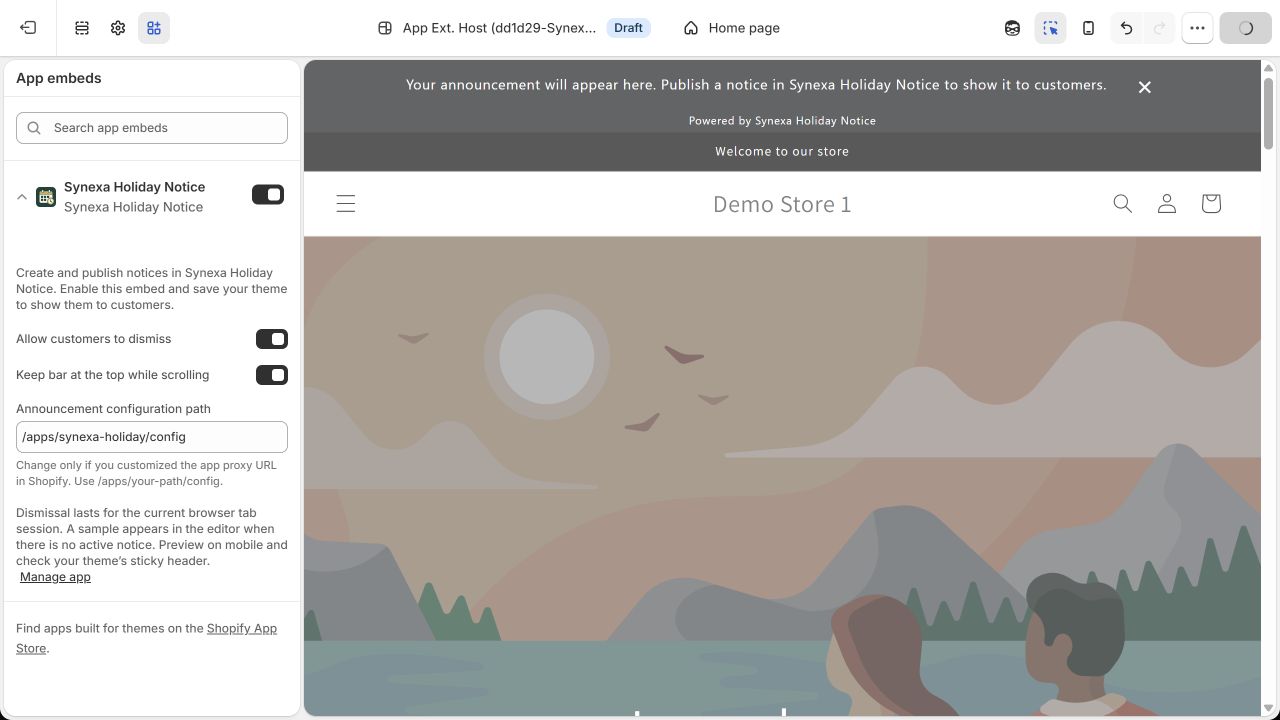
Example from an October 2026 development-store theme. The editor can show a sample message when no actual notice is eligible.
Verify the correct theme
The dashboard's activation result checks the published theme. It does not establish whether the app is enabled in every draft or development theme. When previewing an unpublished theme, open that theme's editor, enable its embed, save it, and use its own preview.
Open the storefront separately and confirm a real published, enabled notice is visible. An editor sample confirms the embed can render; it does not mean your actual notice is published.
If activation is unknown
Check the toggle directly in the theme editor and save again. An unavailable activation check is not proof that the embed is disabled. If the real storefront is still empty, check the notice's state and schedule before changing the theme.