
Synexa Holiday Notice
How to preview and publish a notice
Understand the editor preview, publishing state and storefront verification.
Updated
The editor's Message preview helps you check text and colors. It does not make the announcement visible to shoppers, and it does not replace checking your actual theme.
Preview safely
- Open Notices and select the notice, or choose Create notice.
- Keep Publishing state set to Draft while you edit.
- Review the message in Message preview. Adjust colors and check any readability warning.
- Save the draft. Do not treat the preview as a complete test of theme placement, mobile wrapping or optional links.
Publish when ready
- Open the saved notice.
- Set Publishing state to Published and select Enable this notice.
- Review the schedule in the displayed store timezone. Leave the start empty for immediate eligibility, or set a future start. An end time in the past prevents display.
- Check Priority if another notice overlaps, then choose Save changes.
- Confirm the theme app embed is enabled and saved on the correct theme.
- Open the storefront in desktop and mobile views. Allow a short configuration refresh interval or reload the page.
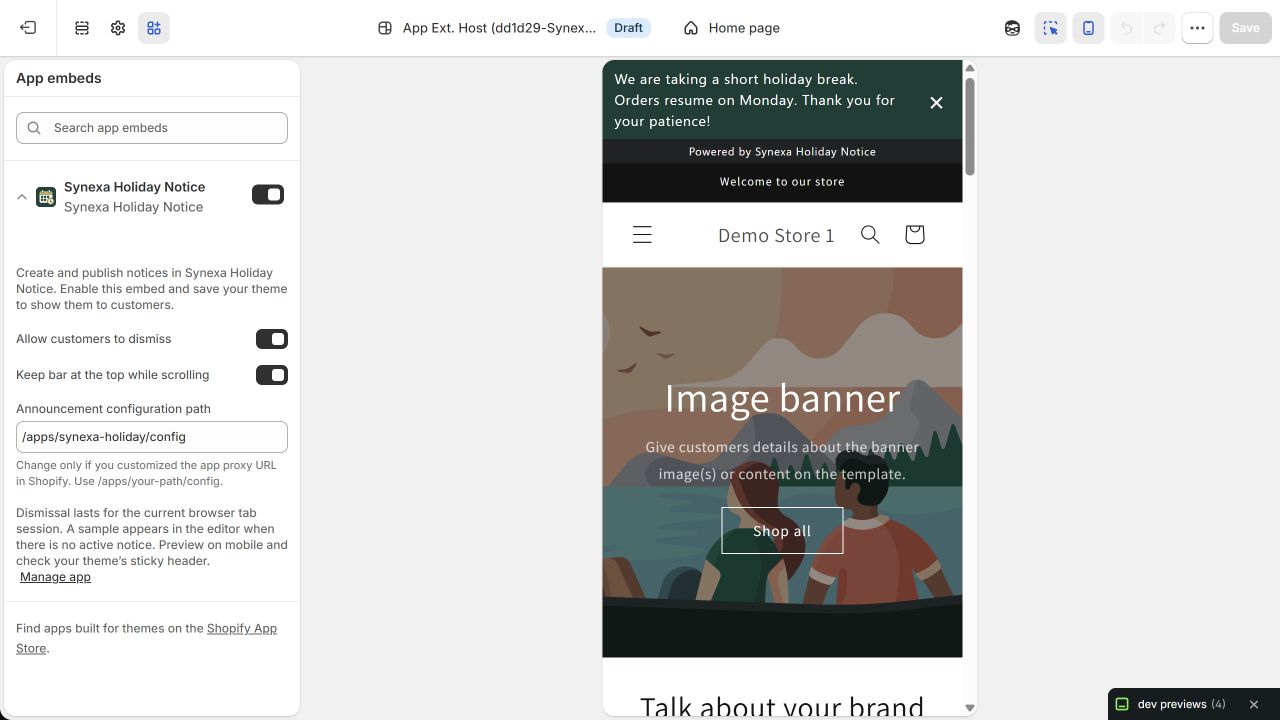
Development-store example from October 2026. Theme appearance and attribution can differ by plan and app version.
Understand the state
- Draft: not published; hidden.
- Scheduled: published and enabled, with a future start.
- Active: eligible now; whether it is shown also depends on competing priorities and your plan's display limit.
- Expired: its end time has passed.
- Paused: paused or disabled; hidden.
The theme editor can show a sample when no actual announcement is eligible. Always verify the real message on the intended storefront.