
Synexa Holiday Notice
Customize notice appearance
Set readable colors, optional paid-plan links, dismissal and sticky positioning.
Updated
Notice text and colors are edited inside the app. Sticky positioning and the theme-side dismissal control are edited in Shopify's theme editor.
Set colors and an optional link
- Open Notices and select the notice.
- In Appearance, set Background color and Text color using the color picker or a six-digit hex value, such as
#202223and#ffffff. - Check Message preview. If a contrast warning appears, choose colors that are easier to read; aim for at least 4.5:1 for normal text.
- On Starter or Pro, add both Link label (optional) and Link URL (optional) if needed. The URL must be HTTPS or a store-relative path beginning with
/. - Choose Save changes, then verify the actual storefront.
The message accepts plain text, not custom HTML. This interface does not provide an animation selector or alternative top/bottom placement selector.
Change defaults for new notices
Open Settings → Timezone and announcement defaults to set default background and text colors. These defaults apply to new notices; editing them does not recolor existing notices. Edit an existing notice directly if it needs to change.
Sticky positioning and dismissal
Open the dashboard's Manage announcement bar or Enable announcement bar link. In App embeds → Synexa Holiday Notice, choose Keep bar at the top while scrolling and Allow customers to dismiss, then save the theme.
Dismissal also needs Allow customers to dismiss announcements enabled in the app's Settings. When dismissal is allowed, closing a notice is remembered for the current browser tab session. If you dismissed it during testing, use a new tab/session to check again.
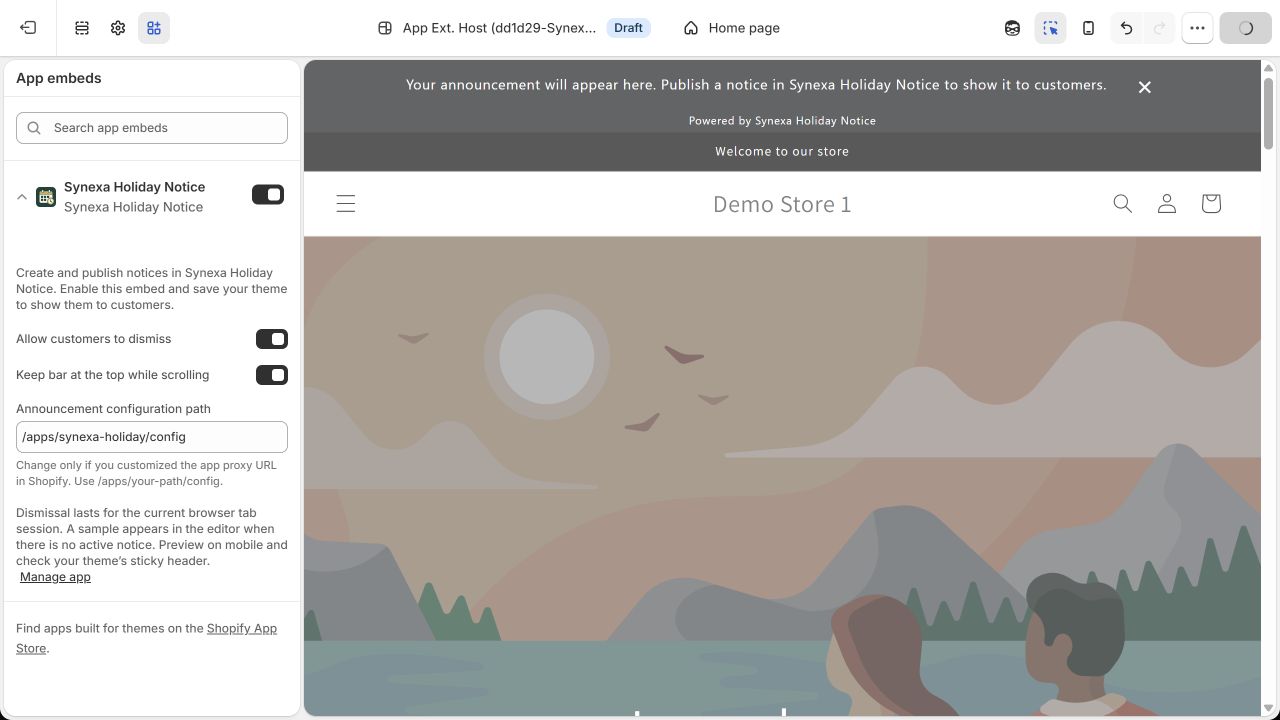
October 2026 development-theme example. Check the published theme separately from a draft theme.